 Beer Appear
NFC tags
One tap from the bar to the menu
Small NFC stickers go along the bar and around the room. A guest holds their phone to one and your menu opens, ready to order and pay. A good tag tells them that's what to do, so nobody has to ask.
Point at the target
The NFC sticker sits under the centre circle. The symbol in it is the one people already know from contactless payments.
Say what happens
"Tap your phone here" and "Order & pay, skip the line" are the whole instruction. Change the words to match your bar.
Make it yours
Add your bar's name or logo and use your colours so the tag looks like part of the place, not a sticker someone added.
Tag maker
Design your own tag
Change anything on the left and the tag updates on the right. Your logo and text stay in your browser; nothing is uploaded.
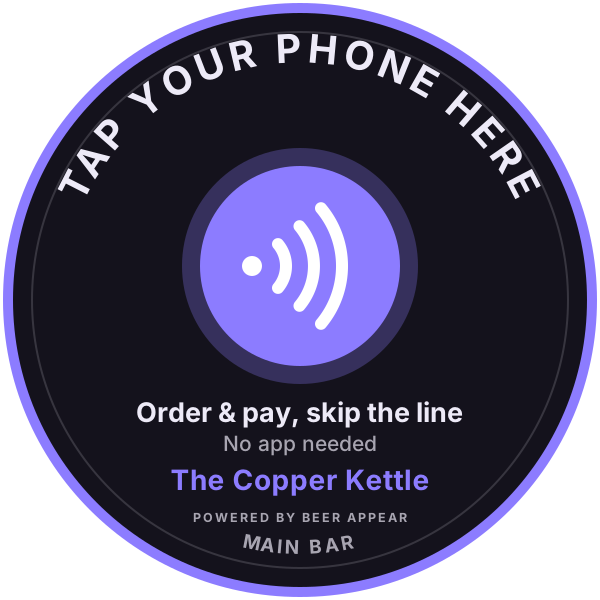
SVG stays sharp at any size and is best for a print shop. PNG is 1800 × 1800 pixels.
Setting up
From design to bar top
1. Buy NFC stickers
Standard NTAG213 or NTAG215 stickers work. Round ones around 25–30 mm are easy to find, and you need a few for each bar, plus some around the room for ordering ahead.
2. Write each one
In your dashboard, under Setup ▸ Spots & tags, find the spot the tag is for, tap Write a tag and hold the sticker to the back of an iPhone or NFC Android phone. It takes a few seconds.
3. Print your design
Print it on adhesive label paper, or have a print shop make stickers or bar-top cards. Line the centre circle up over the NFC sticker so the chip sits right under the target.
4. Stick it down and test it
Use a flat, dry surface where guests will naturally reach, then tap it with your own phone. NFC reads through thin paper, card and plastic.
Metal bar tops: NFC stickers don't read reliably when stuck straight onto metal. Buy "on-metal" (ferrite-backed) stickers, or put the tag on a non-metal card or coaster.