 Beer Appear
Tap · Order · Grab
Your next round, without the wait.
Tap your phone on the Beer Appear tag at the bar, pick your drinks and pay with Apple Pay or Google Pay. Your order goes straight to the bartender, and your phone tells you when it's ready to grab.
No app to download. On iPhone it opens instantly, and on Android it opens in your browser or the app.
How it works
Four taps from thirsty to sorted
No shouting over the crowd or waving cash to get noticed. Order from wherever you're standing, then pick it up at the bar.
Tap the tag
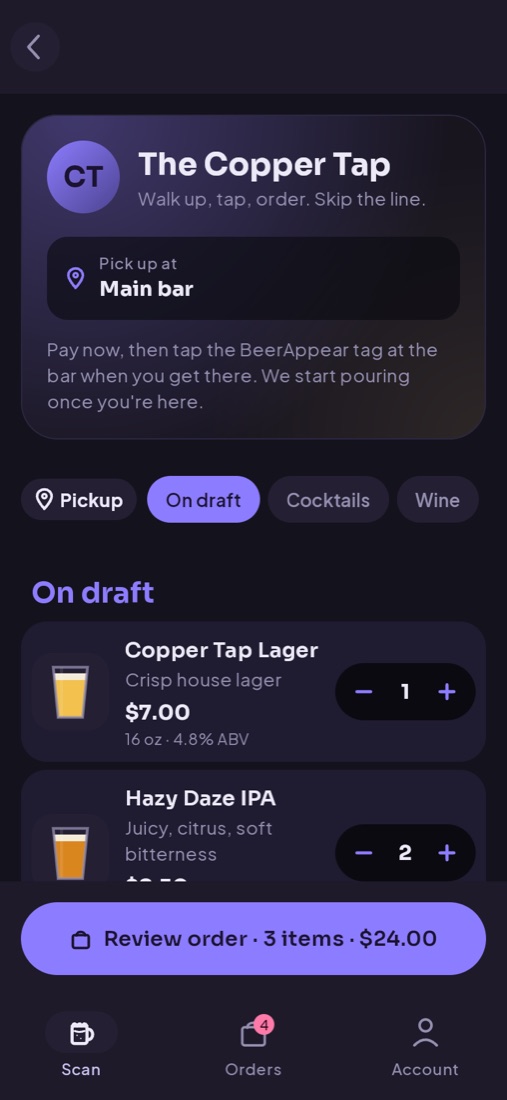
Hold your phone near a Beer Appear sticker on the bar, or one nearby. Tonight's menu opens for that bar.
Order and pay
Pick your drinks, add a tip, and pay with Apple Pay, Google Pay or card through Stripe. No card to hand over, no check to wait for.
Tap in at the bar
When you're at the bar, tap the tag on it, or tap I'm at the bar now. That's when the bartender starts pouring, so your drinks never sit waiting.
Show your symbol
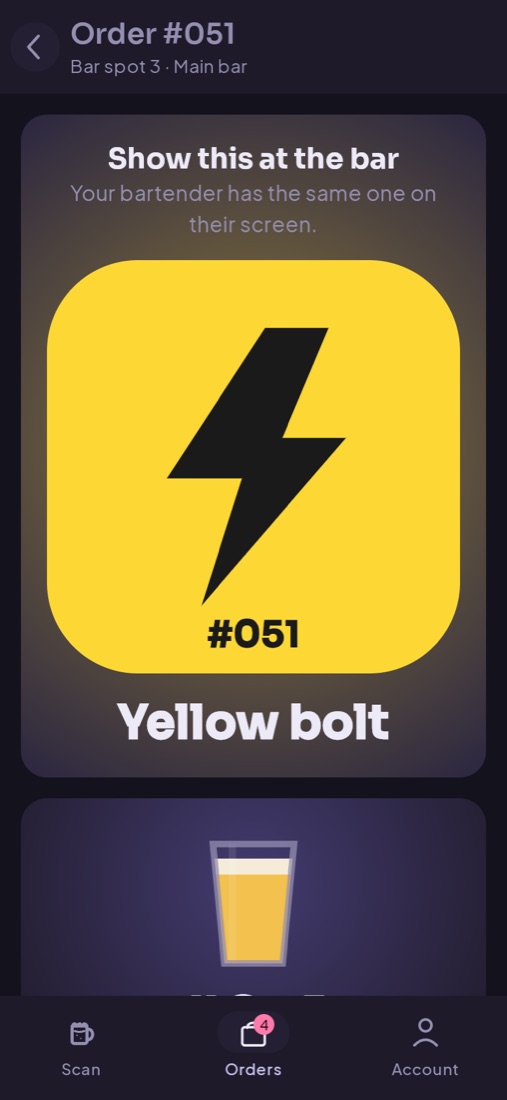
Your phone lets you know when your drinks are on the bar. Show the bartender your symbol, like an orange star, and grab them.
No app required
Works on the phone already in your pocket
- iPhone: tapping the tag opens Beer Appear instantly as an App Clip. Nothing to install.
- Android: tapping the tag opens the Beer Appear app if you have it, or the menu in your browser.
- On your way? In the Beer Appear app, Nearby finds bars around you so you can build your order before you arrive. You pay and send it by tapping a tag when you get there.
- No NFC? Type the short code printed on the tag, or open it from any browser.
- Want to keep your history? Sign in with Apple, Google or email to see your past orders.
No account needed to order: just pay. You'll only need to sign in to start a tab, which takes seconds with Sign in with Apple or Google.
Behind the bar
Orders arrive when the guest does
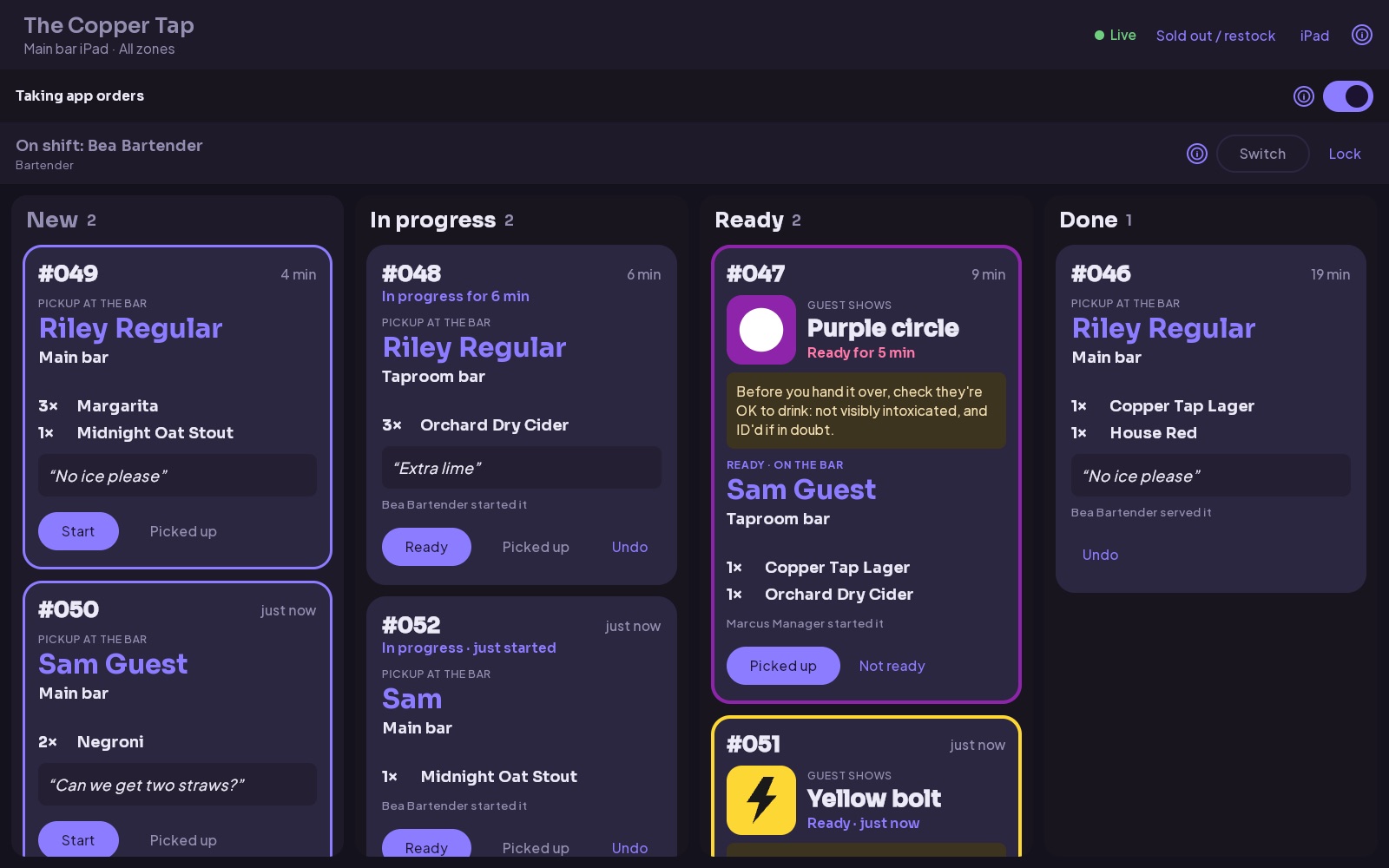
Every order lands on the bar station, the iPad or tablet behind the bar, once it's paid and the guest is at the bar. It shows their name, the drinks and any notes, so staff spend their time pouring instead of taking orders.
Questions
Good to know
Do I need to download an app?
No. On iPhone, tapping a Beer Appear tag opens an App Clip, a tiny instant version of the app. On Android and other phones, the menu opens in your browser. The full app is there if you'd like your order history in one place.
Which phones can tap the tags?
iPhone XS and newer, and most Android phones with NFC turned on. If your phone can't read tags, type the short code printed on the tag into Beer Appear, or ask staff for the link.
Is paying safe?
Payments are processed by Stripe, a PCI-certified payment provider. Your card details go to Stripe and never pass through Beer Appear or the bar's staff. With Apple Pay or Google Pay, your card number isn't shared at all.
How do I know my order was received?
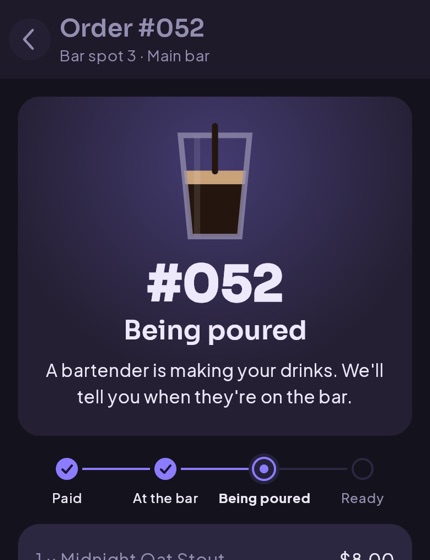
After paying you'll see your order number and its progress: paid, at the bar, being poured, then ready. When it's ready, your phone shows a colored symbol that matches the one on the bartender's screen. If you signed in, the order is also saved under your past orders.
Can I tip?
Yes. Choose a tip when you pay; it goes to the bar along with your order.
What about ID?
You must be of legal drinking age to order alcohol. Staff may check your ID when you pick up your drinks.
Something went wrong with my order.
Let a member of staff know. The bar can see your order and can refund it. Refunds go back to the card or wallet you paid with.
Run a bar? Shorten the line without adding staff.
Set up in about an hour: a few NFC stickers, an iPad or tablet behind the bar, and a Stripe account.